
We’ve released an update that improves Facebook Page publishing in WhalePod Browser. To apply it to your account, you need to reconnect your Facebook Page once. It takes about two minutes, and you only have to do it a single time.
Before you start, make sure:
- You are logged into the Facebook account that manages your Page
- You have admin access to that Page
- WhalePod Browser is updated to the latest version
Step 1 — Accept the access request
- Open Facebook in your browser and confirm you are signed in with the account that manages your Page.
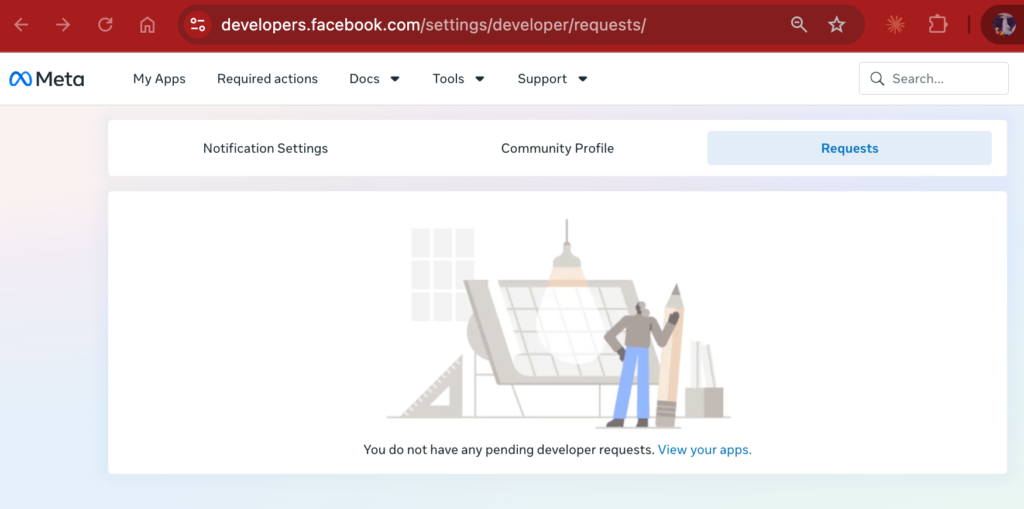
- Go to https://developers.facebook.com/settings/developer/requests/
- Find the pending request from WhalePod and click Accept.
Important: Complete Step 1 before Step 2. If you reconnect your account first, the change will not take effect and you will need to repeat the process.
Step 2 — Reconnect your Page in WhalePod Browser
- Open WhalePod Browser and go to Account Management.
- Find your existing Facebook Page account and delete it.
- Click Add Account and choose Facebook Page.
- Sign in to Facebook when prompted, and approve all the permissions shown on the authorization screen.
- Wait for the window to close. Your Page will appear in Account Management.
Please approve every permission. If any permission is unchecked on the authorization screen, your Page may not appear in WhalePod Browser afterwards.
How to confirm it worked
Your Facebook Page should now appear in Account Management with a normal status. Publish a test post to confirm everything is working as expected.
Frequently asked questions
I don’t see a request on the page in Step 1
Check that you are signed in with the Facebook account that manages your Page — not a personal account that only has visitor access. It is also worth checking your Facebook notifications and the email address linked to your Facebook account. If the request still isn’t there, contact us and we’ll resend it.
Why do I have to delete the account instead of just logging in again?
Deleting and re-adding the account is what refreshes the connection between WhalePod Browser and Facebook. Simply signing in again keeps the old connection in place, so the update would not be applied.
Will I lose my posts or scheduled content?
No. This only refreshes the connection. Your published posts, scheduled posts and drafts on Facebook are not affected, and your content inside WhalePod Browser stays exactly as it is.
My Page doesn’t appear in the authorization window
This usually means the Facebook account you signed in with is not an admin of the Page, or you signed in with a different account than the one used in Step 1. Sign out of Facebook, sign back in with the correct account, and repeat Step 2.
I manage several Pages — do I need to do this for each one?
No. All Pages you manage appear together during authorization, so a single reconnection covers all of them.
I use Instagram through WhalePod Browser as well
Instagram accounts linked to your Facebook Page are reconnected at the same time. No extra steps are needed.
Need help?
If you get stuck at any point, contact our support team and we’ll walk you through it.